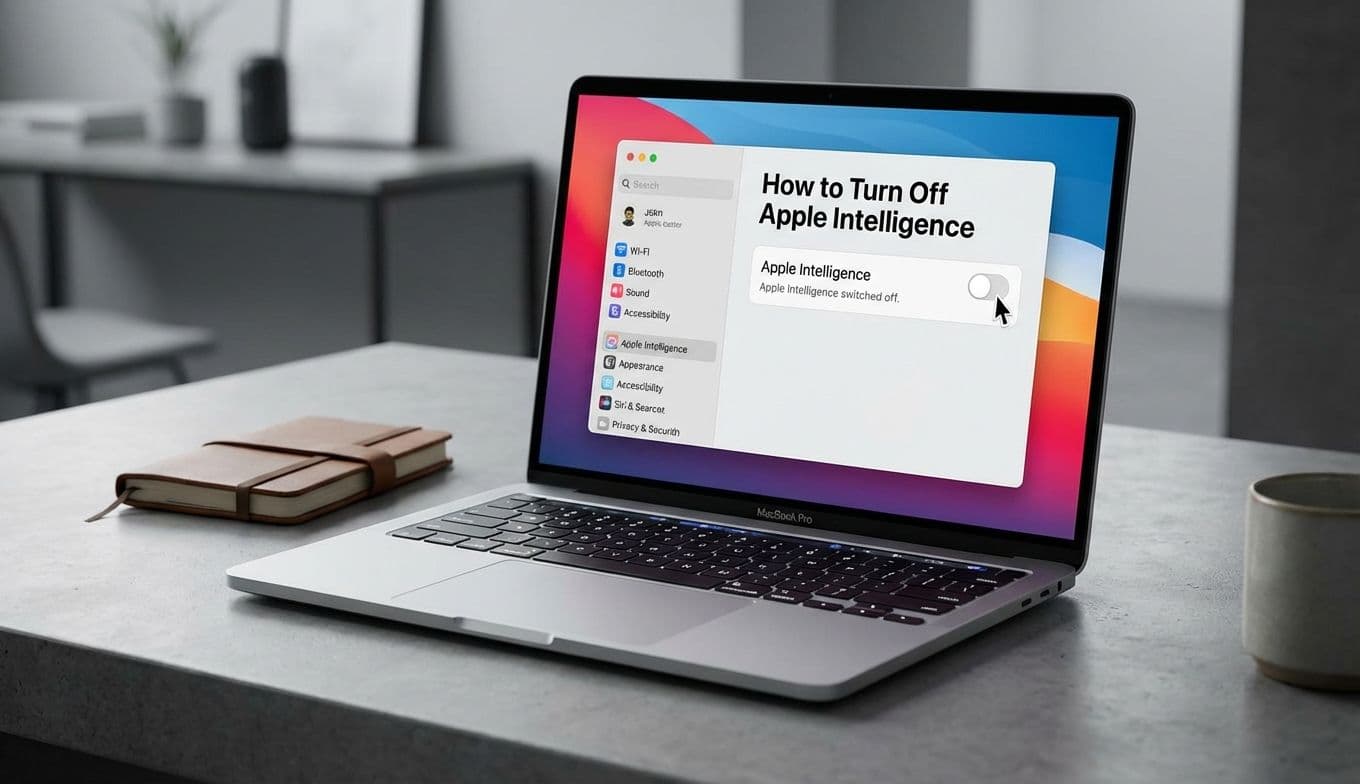
How to Turn Off Apple Intelligence: Disable AI on iPhone (Step-by-Step)

How to Turn Off Apple Intelligence: Disable AI on iPhone (Step-by-Step)

Team GimmieTeam Gimmie
Published on February 12, 2026

The Case for the Manual iPhone

Apple Intelligence is officially a permanent fixture of the iPhone experience, but let’s be honest: not every "revolution" is one you want to join. As a long-time product reviewer, I’ve seen countless features marketed as life-changing that ended up being little more than digital clutter. When Apple first rolled out its AI suite, the buzz was deafening. But for many of us, the most important feature isn't what the AI can do—it’s how quickly we can turn it off.

Choosing to disable Apple Intelligence isn't about being a Luddite or hating progress. It’s about intentionality. We use our iPhones as tools for connection and productivity, and sometimes, having an AI "assistant" constantly summarizing your texts or suggesting how to rewrite your emails feels less like help and more like an intrusion. Whether you’re looking to save battery, protect your privacy, or you’re setting up a device for a loved one who just wants a phone that acts like a phone, knowing how to strip away the AI layer is essential.

The good news is that Apple hasn't made this a permanent, forced marriage. You have total control over how much—or how little—of this technology lives on your device.

How to Disable Apple Intelligence: The Step-by-Step Guide

In the early days of these updates, finding the controls felt like a scavenger hunt. Now that the software has matured, Apple has consolidated these settings into a single, predictable location. If you want to go back to a standard, non-AI experience, follow these exact steps.

To Turn Off the Entire Suite:

  1. Open the Settings app on your iPhone.
  2. Scroll down and tap on Apple Intelligence and Siri.
  3. At the very top, you will see a toggle for Apple Intelligence.
  4. Switch this toggle to Off.

A confirmation prompt will appear, warning you that features like Writing Tools, notification summaries, and the enhanced Siri will be disabled. Tap Turn Off to confirm. Your iPhone will now function as a traditional device without the background AI processing.

The Surgical Approach: Disabling Specific Features

Maybe you don't want to kill the whole system. Perhaps you like the new Siri UI but hate the AI-generated notification summaries. Apple allows you to be specific about what stays and what goes.

Writing Tools: If you find the constant offer to "Proofread" or "Rewrite" your texts annoying, you can disable this specifically within the Apple Intelligence and Siri menu. Look for the Writing Tools section and toggle it off. This keeps the AI out of your keyboard and text fields.

Notification Summaries: This is often the most polarizing feature. If you prefer to see your actual messages rather than an AI’s interpretation of them, go to Settings, then Notifications, and tap on Summaries. You can turn them off entirely or choose which specific apps are allowed to use them.

Clean Up in Photos: This tool allows you to remove objects from photos using generative AI. If you want to keep your photography authentic, you don't have to use it, but there isn't a global "off" switch for this specific tool; it simply sits inside the Photos app edit menu. To avoid it, just stick to the standard crop and color adjustments.

Why "Off" is Often the Best Power User Move

There are three very practical reasons to keep Apple Intelligence disabled, even if you’re a fan of the brand.

First is battery longevity. Processing generative AI tasks—especially those that happen on-device—requires significant CPU and GPU power. Even with the highly efficient chips in the latest iPhones, there is a measurable difference in battery drain when the AI is constantly "thinking" in the background to summarize notifications or index your files for Siri. If you’re a heavy user who needs every percentage point to last until midnight, turning off AI is the easiest way to extend your runtime.

Second is privacy and data peace of mind. While Apple’s Private Cloud Compute is a massive step forward in secure AI processing, the most private data is the data that is never processed at all. For users with high-security needs or those who simply don't want their device analyzing the context of their private emails and messages, disabling the suite is the only way to ensure total data isolation.

Finally, there is the "Clutter Factor." Modern interfaces are busy enough. Adding AI suggestions, summarized stacks, and rewritten text options can make the user experience feel noisy. For many, a "dumb" smartphone that only does exactly what you tell it to do is the ultimate luxury.

The Gift-Giver’s Strategy

If you are buying an iPhone as a gift—perhaps for a parent or a grandparent who is comfortable with their current iPhone 13 or 14—handing them a brand-new iPhone 16 or 17 with Apple Intelligence fully active can be a recipe for tech support headaches. They might be confused why their Siri looks different (the glowing screen border) or why their notifications look "weird" (summaries).

As the tech-savvy person in the family, you can do them a massive favor by "pre-flighting" the device. Before you box it back up or hand it over, go into the settings and disable the AI features. This ensures the phone feels familiar and reliable from the moment they turn it on. You aren't taking away a feature; you’re giving them the gift of a shorter learning curve.

Pro Tip for Gift-Givers: The "Ghost" Setup If you think the recipient might eventually want to try these features, don't just toggle the main switch off. Instead, go to Settings > Notifications > Summaries and turn those off first. Then, go to Apple Intelligence and Siri and turn off the Siri Suggestions. This keeps the core AI engine ready if they ever want to explore it, but removes the "intrusive" elements that usually cause confusion for less tech-savvy users.

Finding the Balance

Apple Intelligence is an impressive feat of engineering, and for the person who wants their phone to anticipate their every need, it’s a dream. But technology should always serve the user, not the other way around.

The beauty of the current iOS ecosystem is that "Apple Intelligence" is an invitation, not a mandate. You can choose to live in the future, or you can choose to keep your iPhone as the reliable, predictable tool it has always been. By taking five minutes to navigate through your settings, you can tailor your device to match your personal boundaries, battery needs, and digital philosophy. Whether you’re optimizing your own daily driver or setting up a gift for someone else, remember: the smartest thing your phone can be is exactly what you want it to be.

How to Turn Off Apple Intelligence: Disable AI on iPhone (Step-by-Step) | Gimmie