Best iOS Settings to Tweak: 24 iPhone Privacy & Focus Tips
Team GimmieThe Digital Antidote: 24 iOS Tweaks to Reclaim Your Focus and Privacy
Look at your phone. Right now, it is likely a chaotic swirl of red notification badges, emails you never signed up for, and apps quietly tracking your every move. It is 2026, and while our iPhones are more powerful than ever, they have also become louder, more demanding, and more invasive.
Your phone should be a tool that serves you, not a digital taskmaster that you serve. To get back to that original promise, you need more than just a quick clean-up; you need a fundamental overhaul of how your iOS handles the world. By adjusting these 24 essential settings, you can transform your iPhone from a source of anxiety into a streamlined, high-performance companion.
THE PRIORITY THREE: DO THESE IMMEDIATELY
Before digging into the full list, start with these three changes. These provide the highest return on investment for your time and will immediately change how you interact with your device.
-
Enable AI-Powered Notification Summaries Navigate to Settings > Notifications > Scheduled Summary. Why it matters: In the age of iOS 19 and 20, your phone can now intelligently group non-urgent notifications into a single, digestible summary delivered once or twice a day. This stops the constant buzzing and can easily reclaim 45 minutes of deep focus every single day.
-
Lock Sensitive Apps Behind FaceID Long-press any app icon on your Home Screen and select Require FaceID. Why it matters: We hand our phones to friends or kids more often than we think. This allows you to add a biometric lock to specific apps like Photos, Mail, or Banking without locking the entire phone. It provides peace of mind that your private data stays private.
-
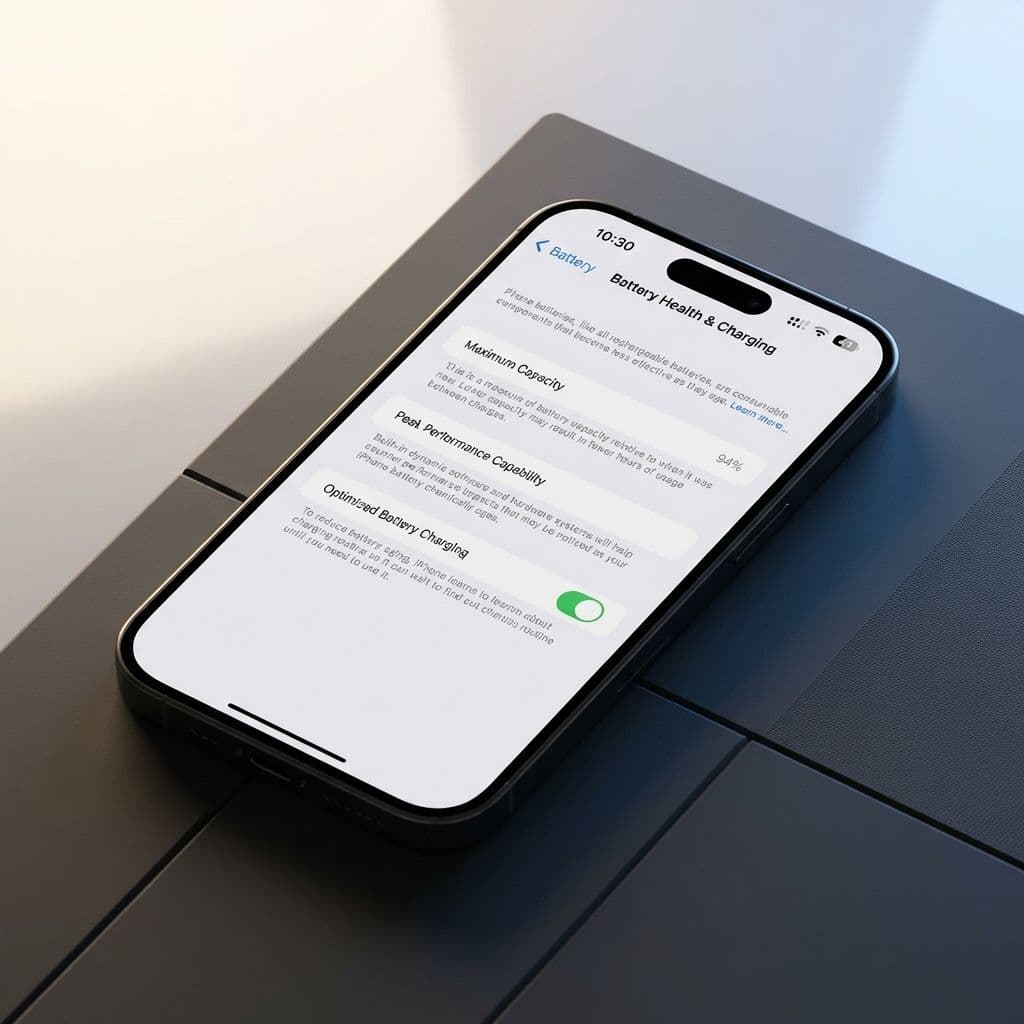
Set an 80 Percent Charging Limit Go to Settings > Battery > Charging Optimization and select 80% Limit. Why it matters: If you plan on keeping your iPhone for three or four years, this is non-negotiable. By capping the charge at 80%, you significantly reduce the chemical aging of your battery, ensuring your phone stays fast and functional long after the next model arrives.

THE PRIVACY SHIELD: DEFENDING YOUR DATA
Modern privacy isn’t just about hiding secrets; it’s about stopping the silent data harvest that happens while your phone is in your pocket.
-
Turn on Mail Privacy Protection Settings > Mail > Privacy Protection > Protect Mail Activity. Why it matters: It prevents senders from using invisible pixels to track when and where you open an email. It’s the ultimate way to stop marketers from knowing your habits.
-
Use Hide My Email Settings > [Your Name] > iCloud > Hide My Email. Why it matters: When a website asks for your email to read an article or get a discount, use this. It generates a random address that forwards to you, so when that company inevitably gets hacked or starts spamming you, you can simply delete that single address.
-
Audit App Tracking Transparency Settings > Privacy & Security > Tracking. Why it matters: Ensure Allow Apps to Request to Track is toggled off. This stops apps from following you across other companies' apps and websites, which is the primary way your digital profile is sold.
-
Disable Precise Location for Most Apps Settings > Privacy & Security > Location Services. Why it matters: Most apps—like weather or news—need to know your city, not your exact street address. Turning off Precise Location for non-navigation apps keeps your specific movements private.
-
Review Safety Check Settings > Privacy & Security > Safety Check. Why it matters: This is a 2026 essential. It lets you quickly see who has access to your location, your calendars, and your photos, and allows you to revoke that access instantly if a relationship or situation changes.
-
Use Private Wi-Fi Addresses Settings > Wi-Fi > [Your Network Info]. Why it matters: When enabled, your iPhone uses a different MAC address for every network. This prevents network providers from tracking your device as you move between coffee shops or airports.
-
Lock Your Hidden Photos Album Settings > Photos > Use FaceID. Why it matters: The Hidden album is a great place for sensitive documents or private photos, but it used to be accessible to anyone with your passcode. This ensures only your face can open it.
THE FOCUS OVERHAUL: CALMING THE NOISE
A smart phone shouldn't be a loud phone. These tweaks are designed to minimize distractions and make the interface work for you.
-
Link Focus Modes to Your Lock Screen Long-press your Lock Screen > Focus. Why it matters: You can set your phone so that when you are at work, your wallpaper changes and only work-related apps appear. When you get home, the work apps disappear. It creates a physical and digital boundary for your mental health.
-
Silence Unknown Callers Settings > Phone > Silence Unknown Callers. Why it matters: This effectively ends robocalls. Anyone not in your contacts goes straight to voicemail. If it’s important, they’ll leave a message; if it’s a scam, you’ll never even hear the ring.
-
Turn on Haptic Keyboard Settings > Sounds & Haptics > Keyboard Feedback. Why it matters: Enabling Haptics gives you a subtle physical click under your thumb as you type. It makes the digital experience feel more tactile and results in fewer typos and a more satisfying writing experience.
-
Use Focus Filters Settings > Focus > [Pick a Focus] > Add Filter. Why it matters: This is the pro-level version of Focus. You can set it so that when you are in Work mode, you only see work calendars and work email accounts, hiding your personal life until you are actually off the clock.
-
Move New Apps to the App Library Only Settings > Home Screen & App Library. Why it matters: Stop your home screen from becoming a dumping ground for every app you download. This keeps your home screen clean and forces you to use the search bar or library, reducing mindless app-tapping.
-
Clean Up the Control Center Settings > Control Center. Why it matters: Remove the fluff you don't use (like Home controls if you don’t have smart lights) and add what you do (like Voice Memos or Apple TV Remote). It makes your most-used tools a one-swipe-away reality.
-
Improve Dictation with Automatic Punctuation Settings > General > Keyboard > Auto-Punctuation. Why it matters: In 2026, iPhone dictation is nearly flawless. With auto-punctuation, you can speak naturally, and the phone will insert commas and periods for you, making hands-free texting actually viable.
THE EFFICIENCY ENGINE: MAXIMIZING PERFORMANCE
These settings ensure that your iPhone runs smoothly, lasts all day, and doesn’t waste resources on tasks you don’t care about.
-
Manage Background App Refresh Settings > General > Background App Refresh. Why it matters: You don't need a random game or a retail app updating in the background while you sleep. Turn this off for everything except your most vital communication and navigation apps to save significant battery life.
-
Offload Unused Apps Settings > App Store > Offload Unused Apps. Why it matters: Your iPhone will automatically delete the data for apps you haven't opened in months but keep your personal settings. It’s the easiest way to ensure you never run out of storage for photos or videos.
-
Set Auto-Lock to 30 Seconds Settings > Display & Brightness > Auto-Lock. Why it matters: It’s the simplest battery fix in the book. If you set your phone down and the screen stays on for five minutes, you are burning battery for no reason. 30 seconds is the sweet spot.
-
Optimize for Dark Mode Settings > Display & Brightness > Dark. Why it matters: On iPhones with OLED screens, black pixels are literally turned off. Using Dark Mode isn't just an aesthetic choice; it actually draws less power and extends your screen’s lifespan.
-
Schedule Night Shift Settings > Display & Brightness > Night Shift. Why it matters: By shifting the display to warmer colors at night, you reduce blue light exposure, which helps your brain produce melatonin. It makes your phone less of a sleep-disruptor.
-
Disable Wi-Fi Assist Settings > Cellular > Wi-Fi Assist. Why it matters: If your Wi-Fi is spotty, your phone will sneakily use your cellular data to boost the signal. If you have a capped data plan, this can lead to expensive surprises. Turn it off to keep your data usage transparent.
-
Enable Clean Energy Charging Settings > Battery > Battery Health & Charging. Why it matters: Your iPhone will try to charge specifically when the local power grid is using cleaner energy sources. It’s a small, zero-effort way to reduce your carbon footprint while you sleep.
THE FINAL VERDICT
Modern technology often feels like it is happening to us, rather than for us. But by taking twenty minutes to walk through these settings, you are asserting control. You are deciding that your time, your attention, and your data belong to you.
These changes aren't just technical adjustments; they are the foundation of a healthier relationship with the most important tool you own. Once you’ve tailored these settings to your life, you’ll find that your iPhone feels less like a distraction and more like the incredibly smart, helpful device it was always meant to be.