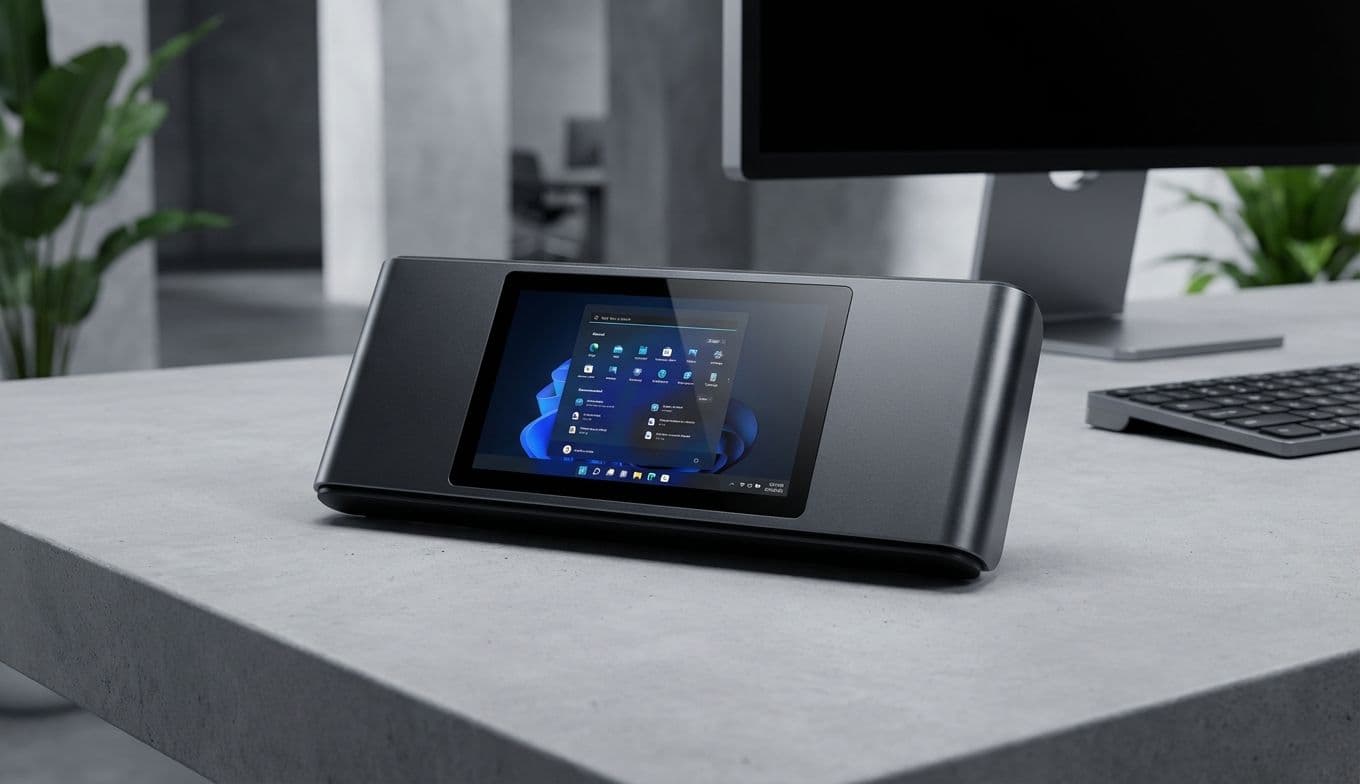
Windows 11 Command Palette Dock: The PowerToys Menu Bar Guide
Team Gimmie
1/30/2026

Windows 11 Might Finally Get the Command Center You Actually Want
Your screen is a digital battlefield. Between the stack of browser tabs, the scattered icons on your taskbar, and the hidden system tray icons you can never find when you actually need them, Windows 11 can feel less like a workspace and more like a scavenger hunt. Microsoft’s latest experiment, a PowerToy called the Command Palette Dock, wants to change that.
Instead of another rigid UI update, this is a highly configurable top menu bar—reminiscent of macOS or Linux—that aims to bring your most vital tools out of the shadows. As someone who has spent years testing every productivity tool in the book, I’m cautiously optimistic. This isn't just about adding more pixels to your monitor; it’s about reclaiming your focus and streamlining your workflow.
The End of Desktop Clutter?
The Command Palette Dock isn't just a static strip of icons. The goal is a floating, dockable interface that can live at the top, bottom, or sides of your display. It’s designed to house system resource monitors, quick-access toggles, and shortcuts that usually require three clicks or a keyboard shortcut you’ve probably forgotten.
The genius here is the configurability. Microsoft isn’t forcing this on everyone; it’s an optional experiment within the PowerToys suite. If you want a translucent bar that auto-hides until you hover over it, you can have it. If you want a permanent dashboard showing your CPU usage and network speed while you edit 4K video, that’s an option too. It brings the efficiency of professional software command palettes—like those in VS Code or Adobe Creative Cloud—directly to the operating system level.
Who Is This Productivity Power-Up For?
Not everyone needs a secondary navigation bar. If your computer usage starts and ends with a web browser and a few Word documents, you’re likely fine with the standard taskbar. But for specific power users, this could be the missing piece of the productivity puzzle.
The Multitasking Creative If you’re a designer, editor, or developer, your workflow is a delicate dance between heavy applications. You need to see your system health to ensure your render isn’t crashing, and you need quick access to custom scripts. A dedicated dock allows you to keep your main workspace clean while housing the engine room controls just a glance away.

The Performance-Obsessed Gamer Gamers love data, but they hate distractions. Usually, monitoring frames per second or GPU temperature requires intrusive overlays that can sometimes interfere with the game itself. A subtle, configurable top bar allows a gamer to monitor their machine’s vitals in real-time without cluttering the center of the screen or forcing an alt-tab to the Task Manager.
Hardware to Complete the Command Center
Software is only half the battle. If you’re looking to transform your desktop into a true high-performance workstation—or if you’re looking for a gift for someone who lives at their desk—hardware that complements this command center approach is essential.
The Logitech MX Master 3S is the gold standard for this kind of setup. Its side-scrolling wheel and programmable buttons are perfect for navigating a new UI like the Command Palette Dock. You can map a specific button to trigger the dock or toggle between different layout profiles, making the software feel like a physical extension of your hand.
For those who want to take it a step further, the Elgato Stream Deck is the ultimate companion. While originally designed for streamers, it has become a productivity powerhouse for pros. Imagine having physical buttons that sync with your Windows menu bar, allowing you to launch complex macros or monitor system stats with a tactile press. Pairing the software flexibility of PowerToys with the physical control of a Stream Deck creates a workflow that feels genuinely futuristic.
3 Things to Check Before Installing
Since this is an experimental PowerToy and not a core Windows update, there are a few things you should consider before jumping in:
-
Your System Resource Overhead While the dock is designed to be lightweight, any tool that constantly monitors CPU and RAM usage does take up a small slice of those very resources. If you’re working on an older laptop with limited memory, test it thoroughly to ensure it doesn’t cause lag during heavy tasks.
-
Workflow Redundancy Take a look at your current taskbar. Are you going to pin the same apps to the new dock? To get the most value, use the Command Palette Dock for things the taskbar can’t do well—like system monitoring, network toggles, and custom scripts—rather than just making a second row of app icons.
-
Version Stability PowerToys are preview features. They are generally safe, but they can be buggy. If your work depends on 100 percent system uptime with zero interruptions, you might want to wait a few weeks after a new release to see how the community responds to its stability.
The Verdict
Microsoft is often accused of changing things just for the sake of change. But with the Command Palette Dock, they seem to be leaning into what power users actually want: more control and less friction. It’s an acknowledgment that the one size fits all approach to user interfaces doesn't work for professionals and enthusiasts.
We’ll be watching this experiment closely as it evolves. If Microsoft can keep the performance impact low and the customization options high, this won't just be another utility—it will be a must-have for anyone looking to master their Windows 11 environment. For now, it’s a promising step toward a more efficient, personalized desktop experience.